
Lab 0.2: Solving, Stacking, and Pretty Pictures!#
Due: Monday, April 7 at 9:00 am.
This lab walks through solving and stacking of raw images from the telescope. By the end of this lab, you will be able to
use ASTAP to solve images
align and stack multiple exposures using Astropy
combine images from individual filters to make a pretty color image
Depending on your background, this lab may also be a crash course in scientific computing with Python, so start this one early! We recommend opening this notebook with Google Colab and making a copy in Google Drive so that you can (1) easily load data from the shared class folder, (2) avoid Python installation and environment headaches, and (3) easily collaborate with your team later in the quarter. If you would like to switch to a different workflow for the final project, we’ll happily help you set that up.
You should complete the key conceptual lines of code marked with TODO:, answer the bolded questions, and read the comments for the rest of the code to make sure you understand what’s going on. When you’re done, save the notebook as a PDF with cell outputs included and upload to Canvas.
Plate Solve with ASTAP (not in Python)#
TODO: Plate solve your images with ASTAP before continuing the notebook!
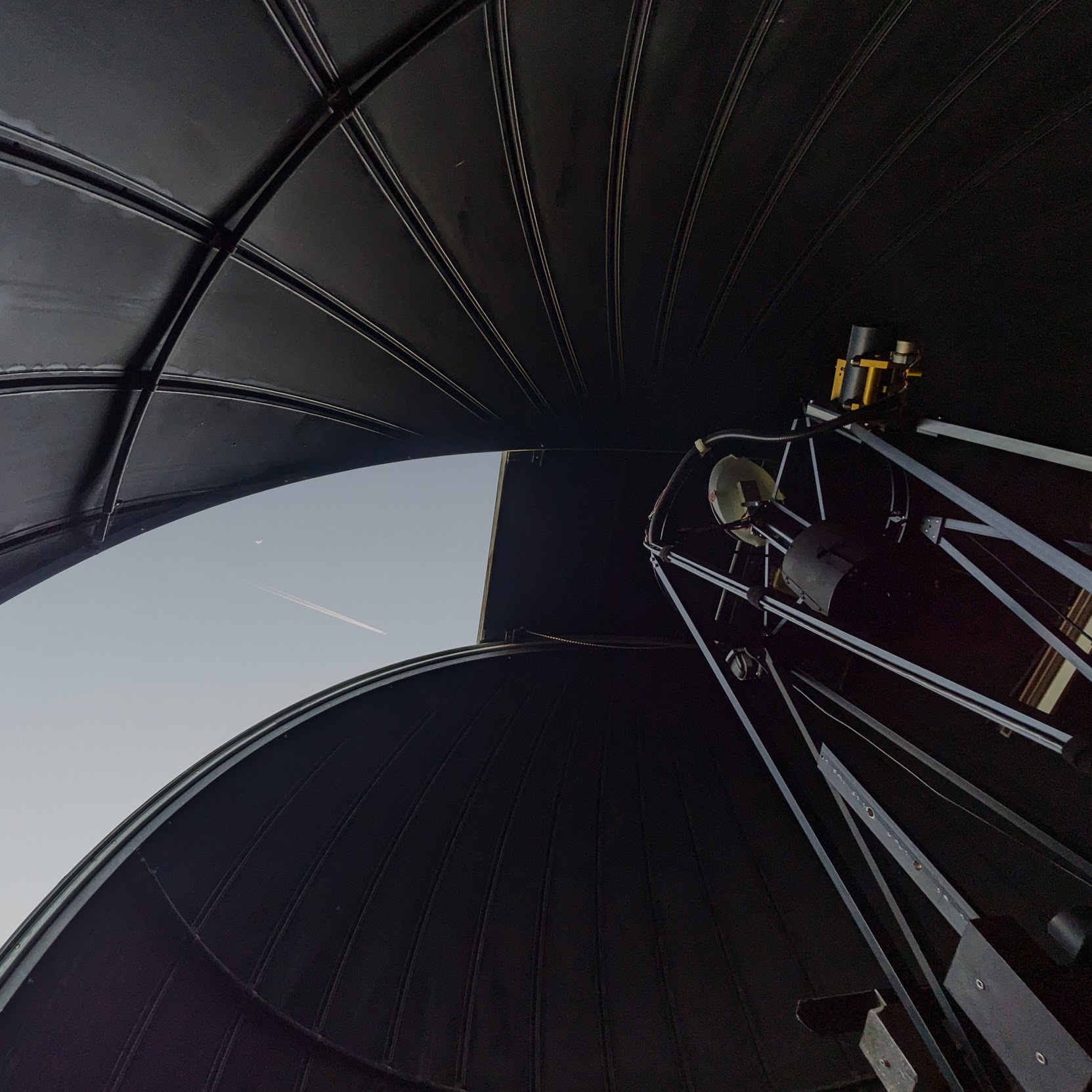
One funny quirk of our 24” telescope: the computer for the mount (which controls the pointing) and the camera (which you instruct to take your exposures) do not communicate with each other. This means that the FITS file header for your astronomical images do not contain RA and Dec information that is extremely useful when aligning and stacking images together. Even for the 0.7 m telescope, the RA and Dec information may not be accurate enough for stacking. While it is possible to stack images by calculating statistics of reference stars and aligning pixels, we opt for the method of adding astrometric information (the precise positions of stars) to the FITS headers before alignment. We can do this via the Astronomy Stacking Program (ASTAP). Using this link, you can download the software (available for Windows, Mac, and Linux) as well as a star catalogue (at least D50 recommended) to compare to a reference image. You must download BOTH ASTAP and the database.
What we are going to be using ASTAP for is “plate solving” the images, essentially making sure that the coordinates for the image are very accurate by comparing the stars to the reference catalogue. ASTAP then rewrites the files with the solved ‘headers’ so that we can stack all the images together accurately to get a photo that isn’t blurry. We will use these solved images (upload to a folder in your drive after solving).
For each batch of images input to ASTAP, you can select a reference image to use for alignment. There are multiple methods for solving, though we recommend you select Star or Astrometric alignment. This will use the downloadable stellar catalogue to match with reference stars in your image, calculating an RA and dec for each pixel in your image. The FITS header will be overwritten, and images can be easily combined with traditional FITS handlers in Python. ASTAP also has built-in stacking and calibration, but we will be doing this in Python to maintain flexibility. You can find a detailed index of ASTAP functions via their helpful guide.
To start, open ASTAP and load in one of the FITS files (download all of them from the shared drive). Then you should click the \(α\) or \(δ\) and it will load the RA and DEC for your object. To edit the settings that ASTAP uses for solving click the \(Σ\) button and use these settings in the stack menu under alignment:
Field of view (height): 0.30 degrees
Radius search area: 10 degrees
Ignore stars less then 0.5”
Star database used: D80 or D50
You are of course welcome to play with these settings but these worked for us.
Rather than solving each FITS file individually we recommend using ASTAP’s batch solve feature. Go to tools>batch processing>Batch solve images FITS and TIFS and select all your images. It will attempt to solve all the images, and a majority of them should solve but it is ok if not all of them do. Reupload the solved images (not the ones it couldn’t solve) to a folder in your drive.
We may have time to do the plate solving at the telescope so that each group does not need to do this individually on their own computers. If not, TAs will be available to answer questions on how to use the software during the Computer Labs. Either way, you’ll need to do this yourself for the final project so it’s a good idea to start learning.
Stacking images with Astropy#
Now we will step you through the basic procedure to stack images (or “coadd”) to achieve a higher signal-to-noise ratio (SNR). Individually, it may be difficult to pick out the faint details from a single image, but by stacking the images we should obtain a “deeper” image that shows more subtle detail including fainter objects in the field.
Unfortunately, image stacking can often be a more difficult process than it initially seems. Objects on the night sky are moving, and while the telescopes make a concerted effort to track these movements, the positions of your objects may not be constant across many frames.
What we are going to do is align every image (already solved with ASTAP) with a reference image. What should we choose as our reference image? There is really no right answer here, but you can imagine that choosing the middle image might make a lot of sense. For instance, if the tracking drifted over the course of obtaining these images, the middle image might be the easiest to align with since it might minimize the amount of shifting for the set of images.
# If using Colab, mount your Google Drive to access data in the shared folder
from google.colab import drive
drive.mount('/content/drive')
# If using Colab, need to install the reproject package
%pip install reproject
# Import packages!

# numpy is a core package for numerical computing in Python, mostly it does fast array operations
import numpy as np

# matplotlib is a common plotting library (plotly is another good one)
import matplotlib.pyplot as plt
%matplotlib inline

# astropy is useful for reading FITS files, doing coordinate transformations, converting units, and much more
import astropy
from astropy.io import fits
from astropy.wcs import WCS # World Coordinate System

# reproject allows us to reproject images onto the same coordinates before stacking
from reproject import reproject_interp

# glob and os are useful for navigating your file system
import glob
import os

# miscellaneous
from tqdm.notebook import tqdm
import warnings
from collections import defaultdict
# Specify data directory, and which object we want from which date
data_dir = # TODO: upload your solved images to Google Drive and point to that directory

# Gather all the filenames for the object and dates
filenames = glob.glob(os.path.join(data_dir, '*.fit')) # raw science exposures
# Sort the data and headers into dictionaries (defaultdicts are like dictionaries, but they create new keys automatically)
data = defaultdict(lambda: defaultdict(list))
headers = defaultdict(lambda: defaultdict(list))

# For each type of exposure, load all the files and append them to the appropriate lists
for fn in filenames:
    with fits.open(fn) as hdul:
        filter = # TODO: get filter from header
        exp_time = # TODO: get exposure time from header
        data[filter][exp_time].append(hdul[0].data) # append data to the appropriate list
        headers[filter][exp_time].append(hdul[0].header) # append header to the appropriate list
# This is how we access the first image for filter R and exposure time 30.0 seconds
data['R'][30.0][0]

# This is how we access the header for the second image for filter V and exposure time 30 seconds
headers['V'][30.0][1]

# This is how we see which exposure times we took for filter R (there will only be one in this case)
data['R'].keys()
# Coadd the calibrated science images
stacked_data = {}
reference_header = # TODO: choose one header to serve as the reference to project other images onto
warnings.filterwarnings('ignore', category=astropy.wcs.FITSFixedWarning) # ignore when astropy fixes a FITS file

for filter in data.keys():

    # Create arrays to hold the stacked data and exposure time per pixel
    stacked_image = np.zeros(data[filter][30.0][0].shape)
    stacked_footprint = np.zeros(data[filter][30.0][0].shape)
    total_exposure = 0

    for time, images in data[filter].items():
        for i, image in enumerate(tqdm(images, desc=f'Filter {filter} {time} s')): # use tqdm progress bar with custom description

            # TODO: reproject the science image into the same coordinates as the reference image (hint: use reproject_interp, look up the documentation)
            reprojected_image, footprint =

            # TODO: update the stacked arrays
            stacked_image +=
            stacked_footprint +=
            total_exposure +=

    # TODO: throw away parts of image not covered by all exposures, by setting to np.nan ("not a number", often used for invalid values)
    # Hint: the code will look something like a[b!=c] = np.nan, this means set all elements of a where b is not equal to c to np.nan
     = np.nan

    # Update header with new exposure time
    new_header = reference_header.copy()
    new_header['EXPTIME'] = total_exposure
    new_header['EXPOSURE'] = total_exposure
    new_header['FILTER'] = filter

    # Final stacked HDU
    stacked_data[filter] = fits.PrimaryHDU(stacked_image, new_header)
Question: Why is it taking so long? What’s so complicated about shifting an image? (Hint: what line of code is taking the longest.)
Answer:
# Plot stacked images, use log scale to see fainter features
fig, axes = plt.subplots(ncols=3, figsize=(15,5))
for i, (filter, hdu) in enumerate(stacked_data.items()):
    axes[i].imshow(hdu.data, cmap='gray', vmin=np.nanpercentile(hdu.data, 0.1), vmax=np.nanpercentile(hdu.data, 99.9), norm='log')
    axes[i].set_title(filter)
plt.show()
Question: Do you notice any artifacts in the stacked image? Where do you think these come from?
Answer:
# If you want, the code below will save the coadded images to wherever you specify
# for filter in stacked_data.keys():
#     hdul = fits.HDUList([stacked_data[filter]])
#     hdul.writeto(, overwrite=True)
Making Color Images#
As you may have noticed, the images that we have been working with have all been grayscale. So how do you make a color image? It is a lot more intensive that snapping a shot with your phone, but it also will likely give you much more insight into everything that your phone does.
Matplotlib has the ability to show color images if you specify the levels of Red, Green, and Blue in each pixel (i.e. an array specifying specific colors in an RGB image). For Python to recognize your input as an image, these values must be either decimals in [0,1] or integers in [0,255]. Because the exposures you took of your astronomical object differ in exposure in different bands, it is typical to rescale each color image to these bounds, along with “clipping” the data to account for outliers. To make fainter details more apparent, we can also take the square root or other power of the clipped data. Feel free to try your own limits and scaling fuctions to make the best image possible!
# Create composite image
composite = np.stack([stacked_data[f].data for f in ['R','V','B']], axis=-1)
clip_min = np.nanpercentile(composite, 80, axis=(0,1)) # minimum at 80th percentile
clip_max = # TODO: Set the maximum at a percentile that looks good
composite = np.clip(composite, clip_min, clip_max)
composite = (composite - clip_min)/(clip_max - clip_min)
composite = # TODO: Take the square root or another fractional power to make the image look better

# Plot
plt.imshow(composite)
plt.axis('off')
plt.gcf().tight_layout()
plt.show()
Question: What do you notice in your final composite image? No right or wrong answer here and questions are as good as answers!
Answer: